How much data do you need for a travel eSIM?
Estimate the right allowance from your own phone usage, trip length, and streaming habits, then add enough breathing room without paying for data you will never use.
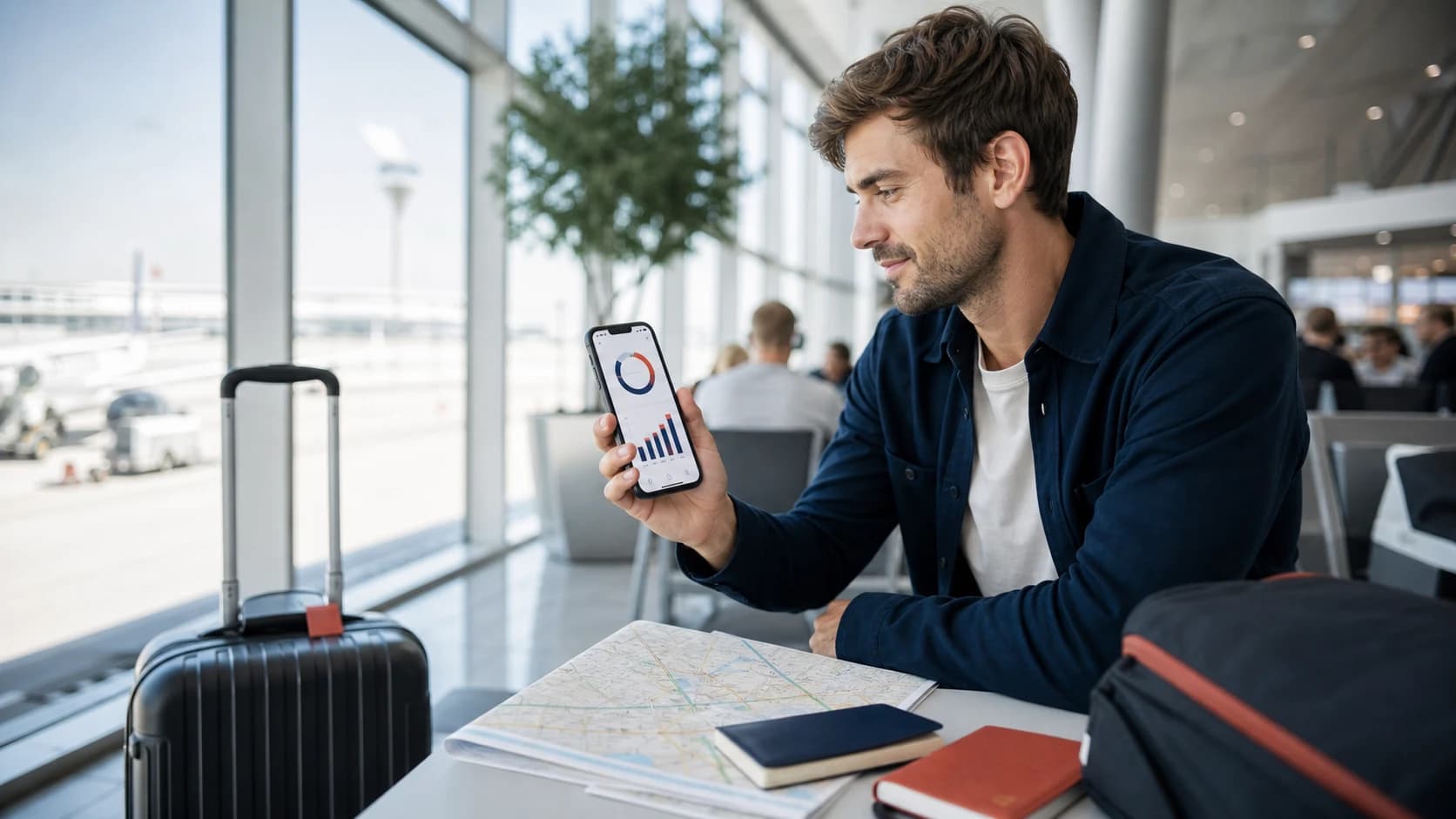
Most travelers do not need unlimited data. They need enough data for the way they will actually use their phone, with a sensible buffer for delays, changed plans, and the occasional day away from Wi-Fi.
Your baseline
Check what your phone uses before guessing
On iPhone, the Cellular settings show usage by app. Apple notes that the displayed period may need to be reset if you want a clean measurement. On Pixel, App data usage provides a graph, date range, and per-app totals. Other Android phones offer similar controls, but the menu names vary by manufacturer.
Look at several ordinary weeks rather than one unusual day. Then ask what changes on the trip: more navigation and translation, less home Wi-Fi, more photo sharing, or hours of video during a train ride. Those differences matter more than the destination alone.
Quick estimate
Useful starting points for a one-week trip
These ranges are planning bands, not promises. App settings, background activity, video quality, and hotspot use can move a traveler from one band to another very quickly.
- Essentials1-3 GB
- Maps, messages, tickets, email, and light browsing, with video kept on Wi-Fi.
- Everyday5-10 GB
- Regular social apps, music, browsing, maps, and occasional short video.
- Heavy10-20+ GB
- Frequent video, video calls, cloud uploads, or some laptop hotspot use.
For a longer trip, calculate from daily usage instead of simply choosing the largest package. A plan that can be topped up may let you start smaller without risking a disconnected final week.
Simple formula
Turn your recent usage into a trip allowance
- 01
Measure
Find your average mobile data per day
Use a recent period that reflects normal phone use and divide the total by the number of days.
- 02
Adjust
Add or remove travel-specific activities
Allow for extra maps, social sharing, translation, video calls, or hotspot work, while moving large downloads to Wi-Fi.
- 03
Multiply
Multiply the daily estimate by trip length
Count arrival and departure days if you expect to use mobile data on both.
- 04
Buffer
Add about 20 percent of breathing room
A buffer helps with delays and heavier days. It is an editorial rule of thumb, not a guarantee.
Example
600 MB per day x 10 days = 6 GB
Add a 20% buffer and the estimate becomes 7.2 GB. An 8 GB or 10 GB plan would provide practical headroom, depending on the available packages and whether top-ups are supported.
The big variable
Video can change the calculation in minutes
Messaging, tickets, maps, and ordinary browsing are rarely the main problem. Streaming video, high-quality video calls, cloud photo backup, app updates, and a laptop connected by hotspot can consume much more.
Netflix, for example, says its mobile settings range from about six hours per GB in Save Data mode to 1 GB per 20 minutes or more at Maximum Data. That spread is why a universal chart claiming that one hour of video always uses a fixed amount is not reliable.
Move entertainment to Wi-Fi
Download shows, music, podcasts, and large files before leaving the hotel or airport lounge.
Control background activity
Pause cloud photo backup, automatic app updates, and other nonessential background transfers on mobile data.
Treat hotspot use as a separate category
Laptop updates, cloud files, and desktop web pages can make tethered use very different from ordinary phone use.
Before departure
Make a smaller plan go further
- Download offline maps for the places you will visit while connected to Wi-Fi.
- Set streaming and social video apps to lower quality or Wi-Fi only.
- Pause automatic photo and video backup over mobile data.
- Set app-store updates and operating-system downloads to Wi-Fi.
- Enable Low Data Mode on supported Apple devices or Data Saver on Android when appropriate.
- Turn off mobile data access for apps you do not need during the trip.
Offline maps still have limits. Google notes that offline navigation does not provide public transport, cycling, or walking directions, and driving directions lose live traffic and alternative routes.
During the trip
Check the trend before the balance gets low
Compare data used with days elapsed. If half the allowance is gone after one quarter of the trip, change the heavy-use settings early or top up before you depend on the connection for a transfer or ticket.
Phone and provider measurements can differ slightly. Google advises checking the carrier's measurement for plan limits; for a travel eSIM, the balance shown by the eSIM provider is the relevant plan record.
Choose enough data without buying on fear
RoamGo shows each plan's allowance, validity, coverage, and top-up options together, then keeps remaining usage visible after purchase.
Sources
Device features, carrier support, and travel rules can change. These sources were checked on August 23, 2026.
- 1.Use cellular data on your iPhone or iPad (Apple Support)
- 2.Reduce and manage mobile data usage (Google Pixel Help)
- 3.Use less mobile data with Data Saver (Google Pixel Help)
- 4.Download areas and navigate offline in Google Maps (Google Maps Help)
- 5.How to control how much data Netflix uses (Netflix Help Center)
Editorial disclosure: RoamGo sells travel eSIMs. This guide is intended to help travelers compare connectivity options, including situations where a home carrier or local provider may be the better fit.