Travel eSIM not working? Fix it without deleting it
No signal, no internet, or painfully slow data are different problems. Diagnose the symptom, check the right settings in order, and preserve the eSIM while you troubleshoot.
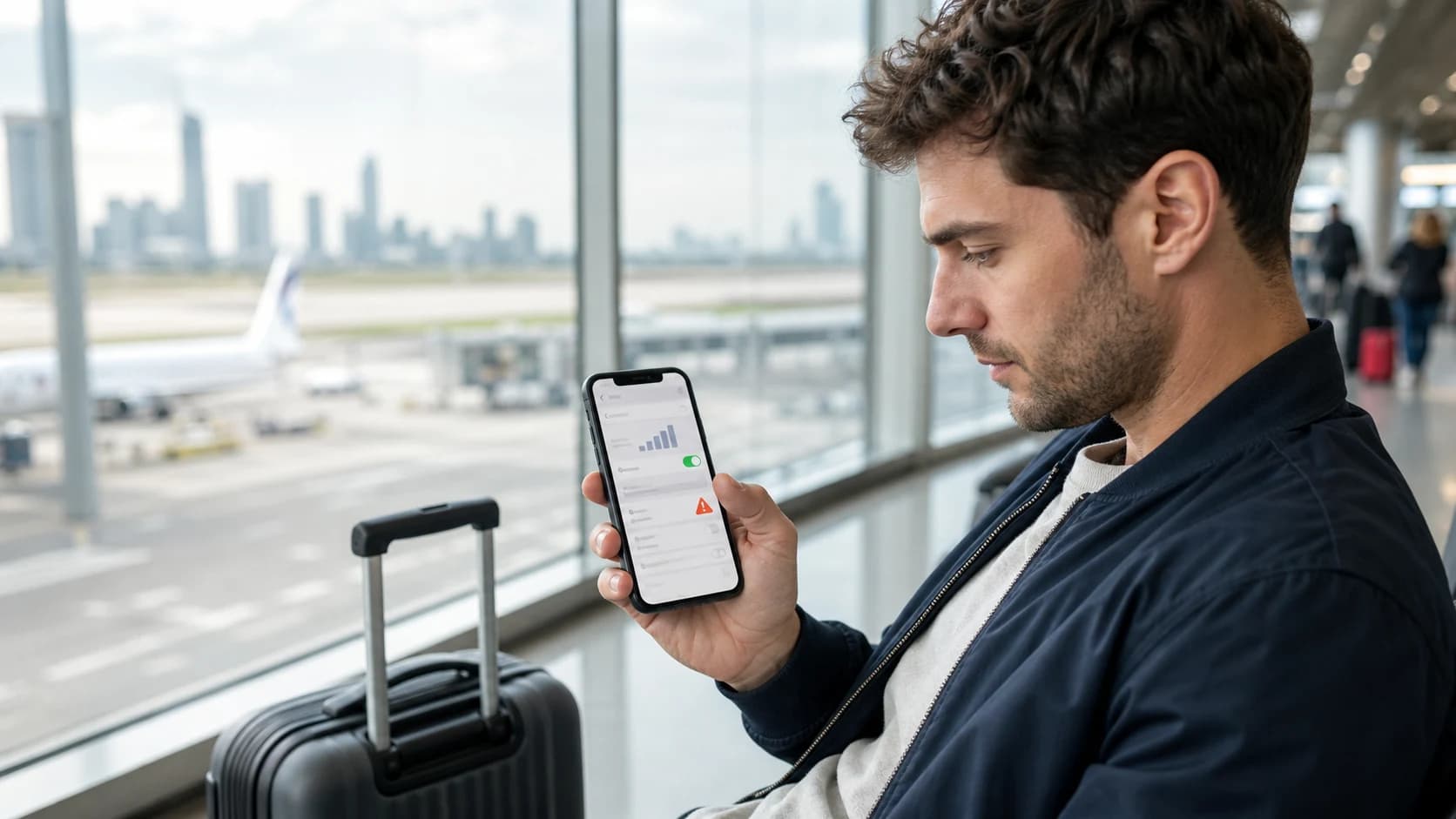
A travel eSIM that shows no signal is not the same problem as one that shows signal bars but cannot load a page. Identify the symptom first, then change one setting at a time so you know what actually fixed it.
Start here
Name the problem before changing settings
Turn off Wi-Fi briefly and look at the cellular status. The indicator and the eSIM's order details usually narrow the problem to one of three paths.
No signal, SOS, or Searching
The phone has not registered on a supported mobile network. Focus on coverage, the active line, network selection, and network mode.
Signal bars but no internet
The network is visible, but mobile data is not flowing. Check the selected data line, roaming instruction, APN, plan status, and remaining balance.
Connected but slow or unstable
Check signal strength, congestion, the supported network, 5G versus LTE, and whether the plan has reached a full-speed allowance.
Before phone settings
Confirm that the plan can work here and now
- The current country is included in the plan's coverage.
- The validity period has started and has not expired.
- The plan still has data remaining or has not reached a speed threshold.
- The eSIM appears in the phone's SIM or Cellular settings.
- The order instructions list at least one supported network in your location.
Installing before arrival does not mean every plan will connect at home. A destination eSIM may remain inactive until it reaches a supported network in its coverage area.
Connection settings
Check the line, data selection, and roaming
- 01
Line
Turn on the travel eSIM
Open the phone's SIM or Cellular settings, select the travel profile, and confirm that the line itself is enabled.
- 02
Data
Select it as the mobile data line
Dual-SIM phones can keep two lines enabled, but only one line is normally selected for mobile data.
- 03
Roaming
Follow the plan's data-roaming instruction
Many travel eSIMs need roaming enabled because they use partner networks. Turn it on only for the travel line when the phone supports per-line control.
- 04
Test
Turn off Wi-Fi and load a simple page
This confirms whether the travel eSIM, rather than airport or hotel Wi-Fi, is carrying the connection.
Keep data roaming off on the home line unless your home plan includes the destination. On iPhone, also consider turning off Allow Cellular Data Switching while testing so the phone does not silently use the other line.
Signal but no data
Use the exact APN from the plan instructions
The Access Point Name tells the network how to route the phone's data session. Some eSIMs configure it automatically; others require a specific value. A missing, misspelled, or unselected APN can leave you with signal bars and no usable internet.
Copy the APN exactly from the order instructions, save it, and select it if the phone requires that step. Do not invent values or copy an APN from another eSIM. If the instructions say configuration is automatic, leave the existing APN alone.
No service
Help the phone register on a supported network
Start with automatic network selection. If it repeatedly chooses an unsupported network, use the plan instructions to select one of the listed operators manually. Give registration a few minutes after each change.
- Confirm that airplane mode is off, then toggle it on and off once to refresh registration.
- Move near a window or outside if the signal is weak inside the building.
- Try LTE or 4G if 5G is visible but will not establish a stable data session.
- Restart the phone after the essential settings are correct.
- Temporarily disable the other SIM to isolate a dual-SIM conflict, then restore it after testing.
Use caution
Leave destructive fixes until the end
A network-settings reset can remove saved Wi-Fi networks and other network preferences. It may help with a device-level problem, but it should come after the plan, line, roaming, APN, and supported network have been checked.
Deleting the eSIM should be even later. Ask support whether the profile can be reinstalled and obtain the correct replacement or reinstall process before removing anything.
Escalation
Give support enough detail to solve it quickly
If the plan still does not connect, send a focused report instead of only saying that the internet is broken. Include the following:
- Order number and ICCID, without posting them publicly.
- Phone make, exact model, and operating-system version.
- Country, city, and approximate time of the failed test.
- Whether the phone shows no service, signal bars, LTE, or 5G.
- Screenshots of the selected data line, roaming setting, APN, and network selection.
- The troubleshooting steps already attempted and their results.
A plan that shows the wrong activation state, balance, or usage may require the provider to refresh or investigate its own record. Phone settings cannot correct a supplier-side status problem.
Keep the plan details beside the troubleshooting steps
RoamGo keeps installation instructions, ICCID, activation state, and remaining usage on the order, giving you and support the same facts when a connection needs attention.
Sources
Device features, carrier support, and travel rules can change. These sources were checked on August 22, 2026.
- 1.If you see SOS, No Service, or Searching on your iPhone or iPad (Apple Support)
- 2.Use eSIM while traveling internationally with your iPhone (Apple Support)
- 3.Fix mobile connectivity issues (Google Pixel Help)
- 4.Connect to mobile networks on a Pixel phone (Google Pixel Help)
- 5.Why is my eSIM not working? (Airalo Help Center)
Editorial disclosure: RoamGo sells travel eSIMs. This guide is intended to help travelers compare connectivity options, including situations where a home carrier or local provider may be the better fit.